
A client request is how you onboard a new client or call in work from an existing one. It bundles what you need into one email and one secure page: their details, your forms, an ID check and your engagement letter.
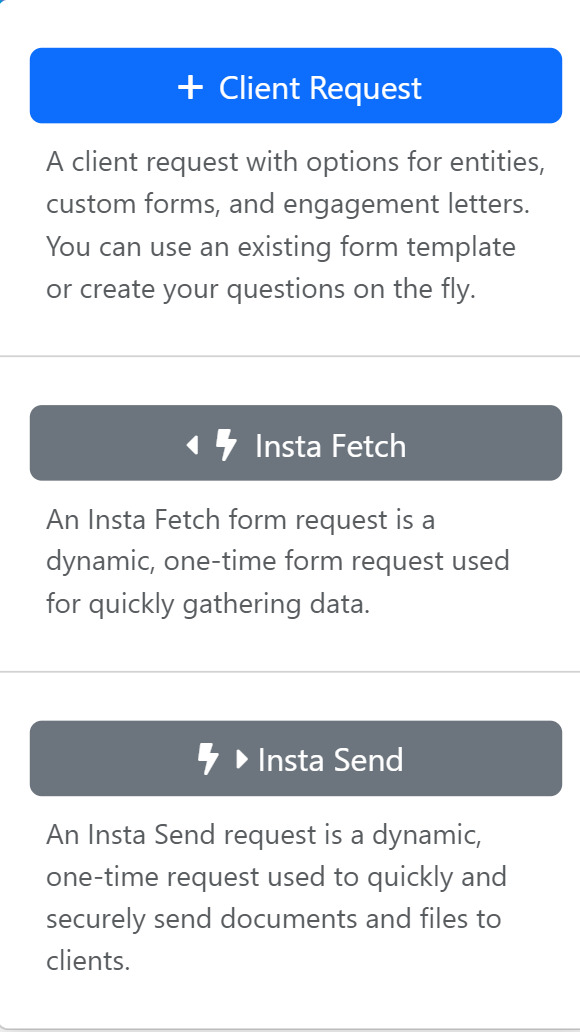
In Seamlss: + Request, in the blue bar at the top right of every screen, then Client Request.
Open Seamlss
Which request? #
- Client Request: onboarding a new client, or calling in a job from an existing one. This page.
- Insta Fetch: a couple of quick questions. See Insta Fetch.
- Insta Send: sending a document, such as a Notice of Assessment, securely. See Insta Send.
Step 1: Choose who it’s for #
Open Client Request
Select + Request at the top right, then Client Request.
Find or add the person
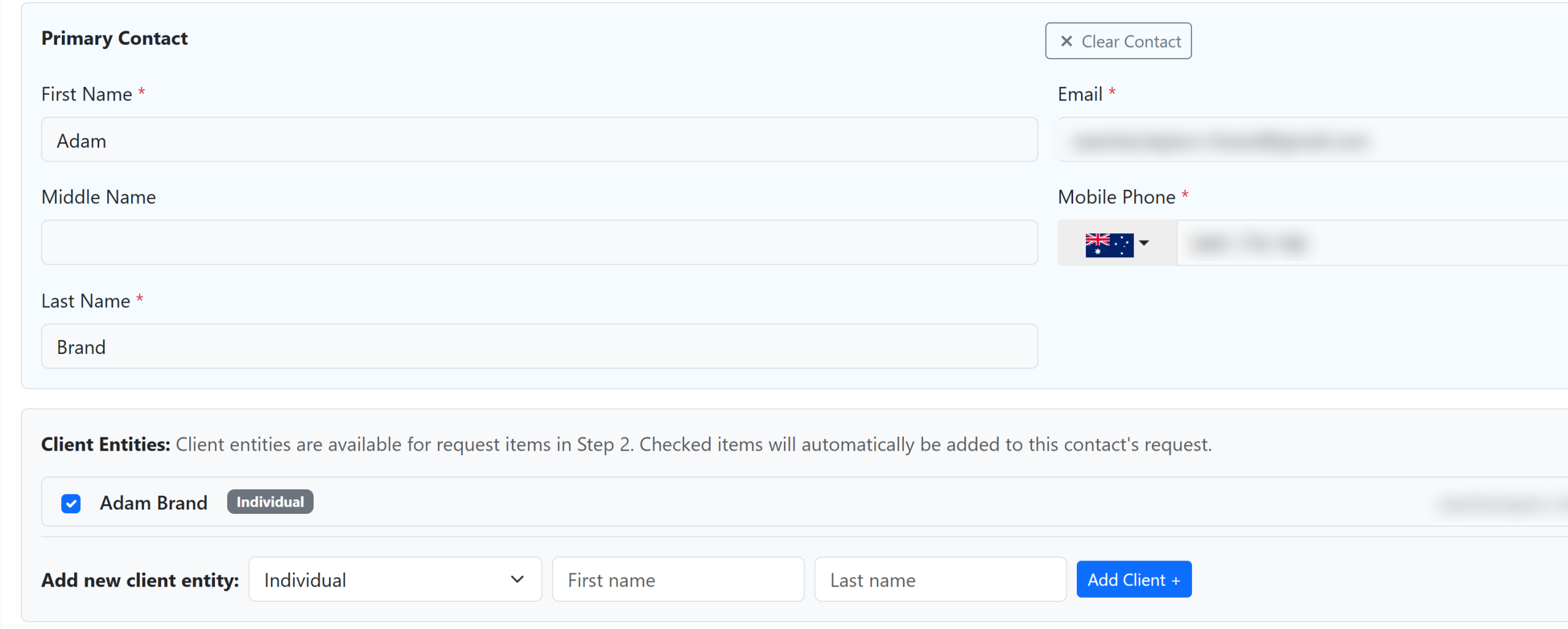
For an existing client, type their name in Search existing contacts and pick them. For a new client, type their name, email and mobile. Each person needs their own email and mobile.
Choose the entities
The person is added as an Individual, already ticked. Add a company, trust, SMSF or other entity with Add new client entity, and untick anything you don’t need. Only ticked entities can be asked for anything.
Name the request, then select Next
Select Edit next to the request name at the top and give it a name you’ll recognise later, such as “Smith family onboarding”.
Step 2: Choose what to ask for #
Each section below has an Add + button. Add what you need, in any order. With two or more people, select each one on the left in turn. They don’t have to get the same things.
Entity Forms: the client’s details #

The client’s details for each entity you ticked: names, addresses, date of birth, TFN, ABN, bank details and so on. They’re built in, so you don’t create them. Think of them as the front cover of the tax return. Seamlss checks TFNs, BSBs and director IDs are valid as the client types, and looks up ABNs. Choose which fields are required in General settings, under Form Field Options. Tick each entity and select Add +.
Don’t rebuild them. Use Entity Forms for the client’s details rather than building your own new client form. You get the checks on TFNs, BSBs, director IDs and ABNs that a custom form can’t do.
Custom Forms: your questionnaires #
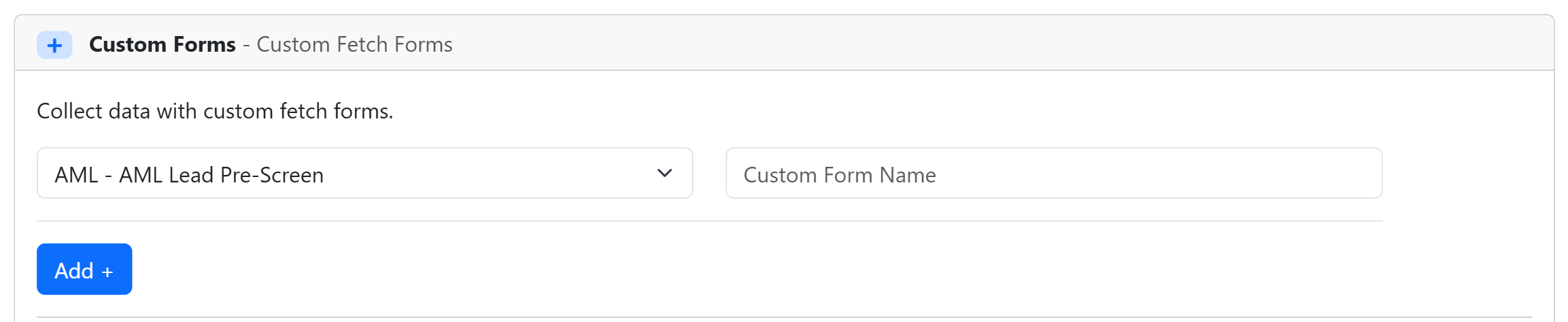
Your firm’s questionnaires, also called Fetch Forms: a tax return checklist, a rental property, FBT, a business year end and so on. Choose a form, give it a name the client will understand, such as “2026 tax return” or “Beach house rental”, and select Add +. Add as many as you need.
Good ones to start with: ITR010 Conditional Income and Deductions for individuals, and FBT 2026 Screening for businesses. Keep them short: a huge form is where clients give up. You manage your forms under Forms. Duplicate one before you edit it.
ITR Forms: the online tax return #
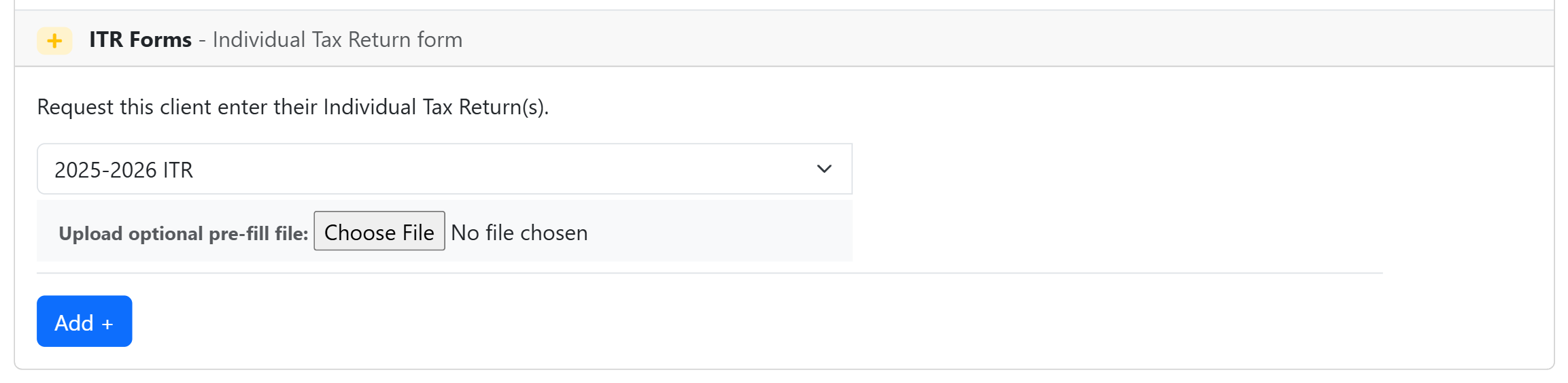
The online Individual Tax Return form. Its questions change as the client answers. Choose the year, and for an existing client upload the ATO pre-fill PDF so they can check it. Choose which questions it asks in ITR options. Send either this or a tax return custom form, not both.
Identity Verification: the ID check #
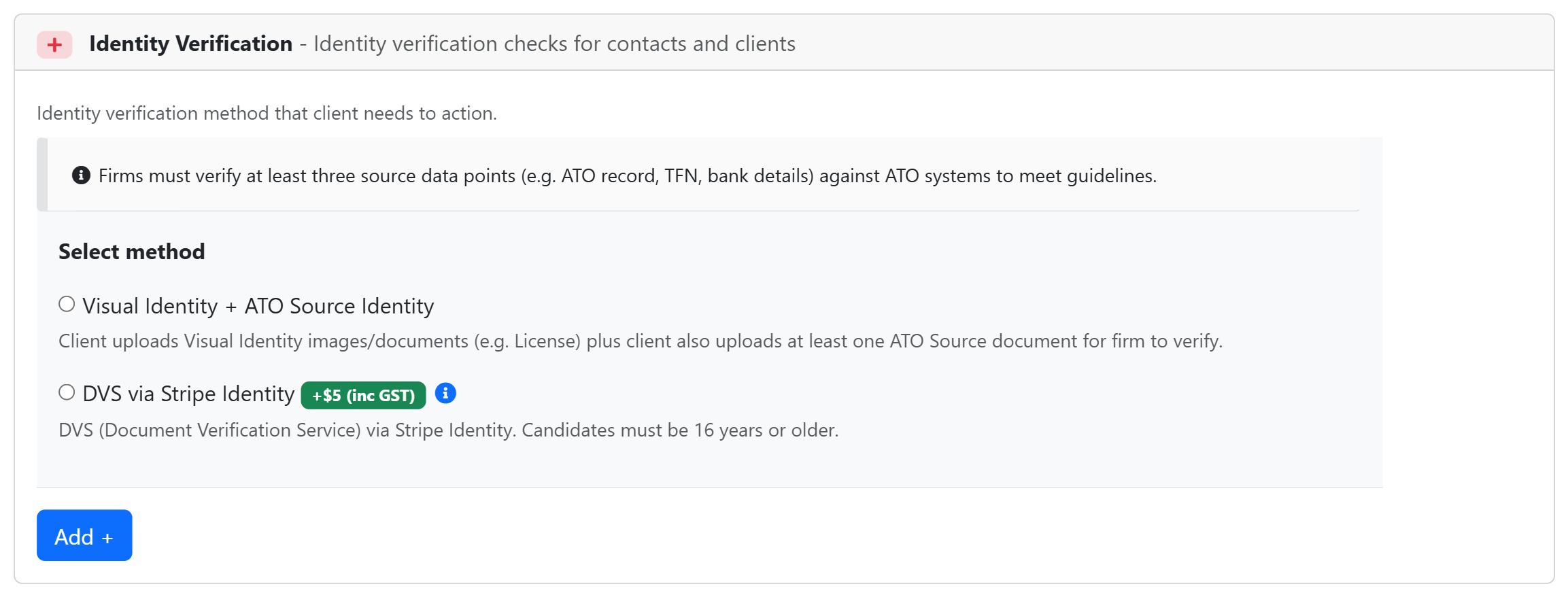
We recommend DVS via Stripe Identity, especially if you do AML checks: the document is checked against government records and the client does a biometric check. Review what comes back within 14 days. See Choose an ID check method.
Engagement letter #
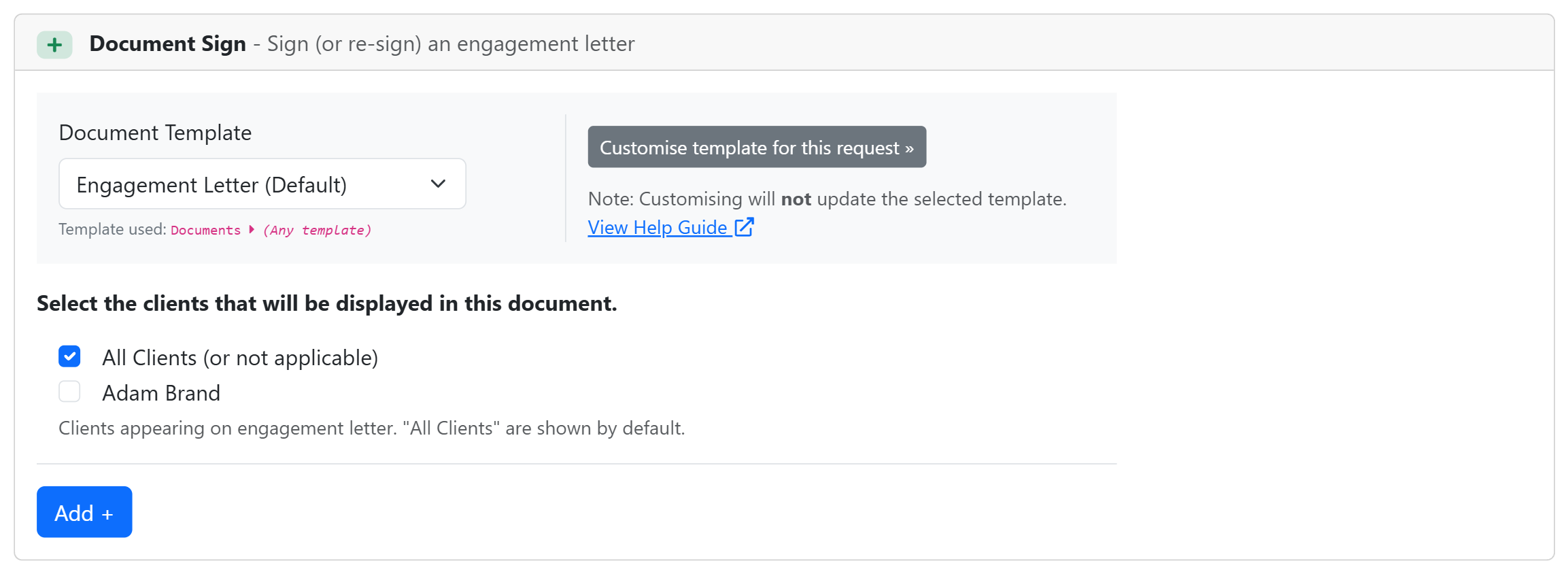
The client reads and signs your engagement letter at the end of the request.
- Document Template: choose which engagement letter to send. You build these in Templates, Documents. See Creating engagement letter templates.
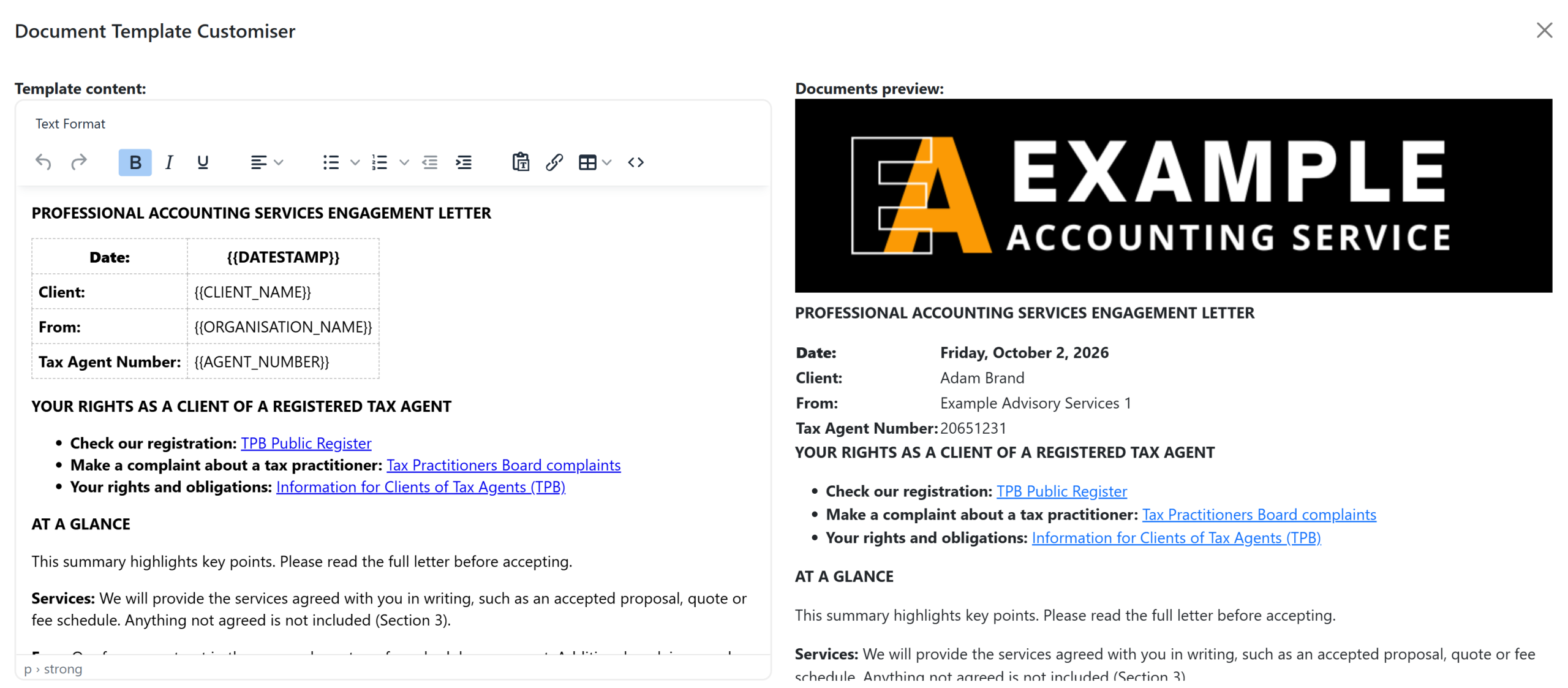
- Customise template for this request: opens the letter with a live preview. Change it for this client only, for example delete the fees section, then select Done. Your saved template doesn’t change.
- Select the clients that will be displayed in this document: All Clients lists everyone in the request and their entities, which is the default. Tick one client instead to send them their own letter.
- Add +: adds the letter. Add more than one if you need to, but one letter for the whole group is easier for the client to sign.
Looking for AML? There’s no AML section. The AML declarations are Custom Forms, and a full risk assessment runs from AML, Risk Assessments once the client is onboarded. See Using the AML Risk Assessment tool and how an AML risk assessment runs in Seamlss.
Step 3: Review and send #
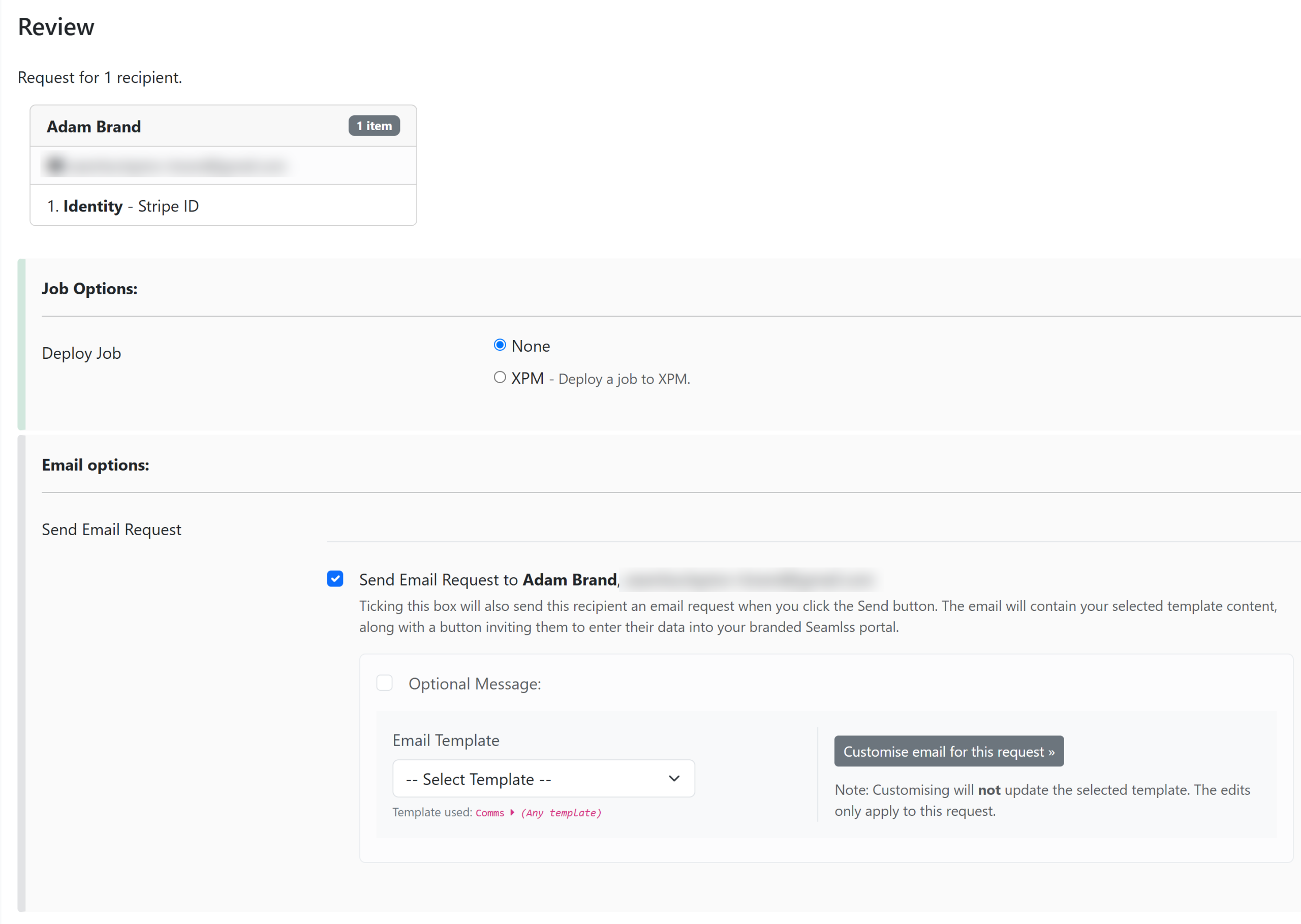
Check the summary
Each person is listed with the items you added. Previous goes back to change anything.
Deploy a job to XPM, if you use it
Choose XPM, match or create the client, then pick the job template, name and budget. You can add more than one job. Leave it on None if you don’t use Jobs in XPM.
Choose the email
Keep Send Email Request ticked. Choose Welcome for a new client or Re-Engage for an existing one. Add an Optional Message or Customise email for this request if this client needs something different. To send the link yourself, untick Send Email Request and copy the link from the dashboard.
Send
Select Send Request.
Saved as you go. Your request saves as a draft once you move past step 1. Unfinished ones wait under Drafts on the dashboard, with an Edit button.
What your client does #
- They get one email from your firm with a button.
- They log in with a code sent to their mobile. There’s no password to set up.
- They work through it on a phone or a computer: entity details, your forms, then the ID check. They can upload documents or take photos.
- They can add an entity you missed, then sign the engagement letter at the end.
- If the request included an entity and agent linking instructions are on, they’re shown how to link your firm as their tax agent.
To see it for yourself, add yourself as a client and send yourself a request.
After you send #
Progress shows on your dashboard. Make sure someone is notified when requests come back: see Notification settings. For reviewing the ID, chasing and pushing the client to XPM, see Onboard your first client.
Something not working? #
Next won’t move past step 2
The request has no items yet. Add at least one item for one person. There’s no error message, the button just won’t move.
It says “email unavailable” when I add someone
Another person in your Seamlss account already has that email. Each person needs their own email and mobile. See when two people share an email.
A contact isn’t in the search
Search finds contacts, not client entities. A client with no contact can’t be sent a request. Add a contact on the client record first. See Add a client.
The client says they got nothing
Check whether Send Email Request was ticked. If it wasn’t, no email went. Copy the link from the dashboard and send it yourself.
The wrong people are on the engagement letter
Check Select the clients that will be displayed in this document in the engagement letter section.
Still stuck? Contact support and tell us what you see.


