
- Overview
- Watch: Client Links Setup Video
- Step 1: Create a Client Client Link
- Step 2: Name and Describe Your Link
- Step 3: Set Client Actions
- Step 4: Attach Fetch Forms (Optional)
- Step 5: Engagement Letter
- Step 6: Activate and Save
- Step 7: Inside Ignition, add to your Next Steps message
- Sample Next Steps Message Template
- Other Ways to Share Your Client Link
Overview #
If your firm uses Ignition for proposals and engagement letters, the recommended way to bring clients into Seamlss is through a Client Client Link.
Client Links are pre-configured links you build in Seamlss. Each link can collect client details, trigger identity verification, attach Fetch Forms, and include an engagement letter all in a single link the client clicks from their Ignition next steps message.
The moment a client accepts their Ignition proposal, they can be directed straight into Seamlss to complete their onboarding. No separate follow-up needed.
For a full overview of everything Client Links can do, see the Client Links help guide.
Watch: Client Links Setup Video #
Before you start, this short video walks through the Client Links setup process from start to finish:
Setup Client Links | Automate Onboarding & Client Engagement
Step 1: Create a Client Client Link #
- From the Seamlss dashboard, click Clients in the left-hand menu.
- Select the Client Links tab at the top of the screen.
- Click Add Client Link to create a new link.
Step 2: Name and Describe Your Link #
Client Client Link Name
Give your link a clear name so it’s easy to identify in your list. For Ignition users, something like “New Client Onboarding for Ignition” works well.
Description
Write a short description that clients will see when they open the link. Keep it welcoming and clear about what they need to do. For example:
“Welcome to [YOUR FIRM NAME]. Please complete this short form so we can get your details set up in our system. It should only take a few minutes.”
Step 3: Set Client Actions #
This is where you control what clients are required to do when they access the link.
Entities
Choose one of the following:
- Require Individual Client Details clients fill in their personal or business details.
- Allow New Clients to Select Their Own Entities clients can add their own business entities during onboarding.
- Require Existing Clients to Review Current Entities clients verify and update information already stored in Seamlss.
For new clients coming from Ignition, the first or second option is most common.
Identity Verification
Select how you want identity verification to work:
- None no verification required.
- Manual Identity your team verifies the client’s identity manually.
- Client-Actioned Identity Verification clients upload their own identity documents. Choose from:
- Visual Identity + ATO Source Identity one ATO document plus one photo ID (e.g., driver’s licence).
- Visual Identity + 2 ATO Source Documents one photo ID plus at least two ATO documents.
Tip: The verification method you set here applies to every client who uses this link, so choose the option that suits your standard onboarding process for new Ignition clients.
Step 4: Attach Fetch Forms (Optional) #
If you want to collect additional information at the same time as onboarding, click Add Custom Form to attach a pre-created Fetch Form.
For example, you might attach a general business information form, a BAS setup form, or a tax planning pre-work form, depending on what services the client has engaged you for.
For more on creating and managing Fetch Forms, see the Client Links guide.
Step 5: Engagement Letter #
Select an engagement letter template to include with the link if you want clients to sign one as part of this process, note they did just sign one in Ignition.
Important for Ignition users: If your client has already signed an engagement letter through Ignition, tick Skip Signing Engagement Letter to avoid asking them to sign a second time. Most Ignition users will want this option ticked.
Step 6: Activate and Save #
- Make sure the Link Active toggle is turned on. This makes the link accessible to clients.
- Click Save Client Link.
- Use the copy button to grab your link, ready to paste into Ignition.
You can come back and edit or deactivate the link at any time from the Client Links tab
Step 7: Inside Ignition, add to your Next Steps message #
The best place to include your Seamlss Client Link is in Ignition’s Next Steps message. This is the message clients see immediately after accepting their proposal, so it’s the right moment to direct them into Seamlss.
Paste your Seamlss Client Link into the message body as a hyperlink.
In Ignition, click Library from the left-hand menu.
Select Messages.
Open and edit your Next steps message.
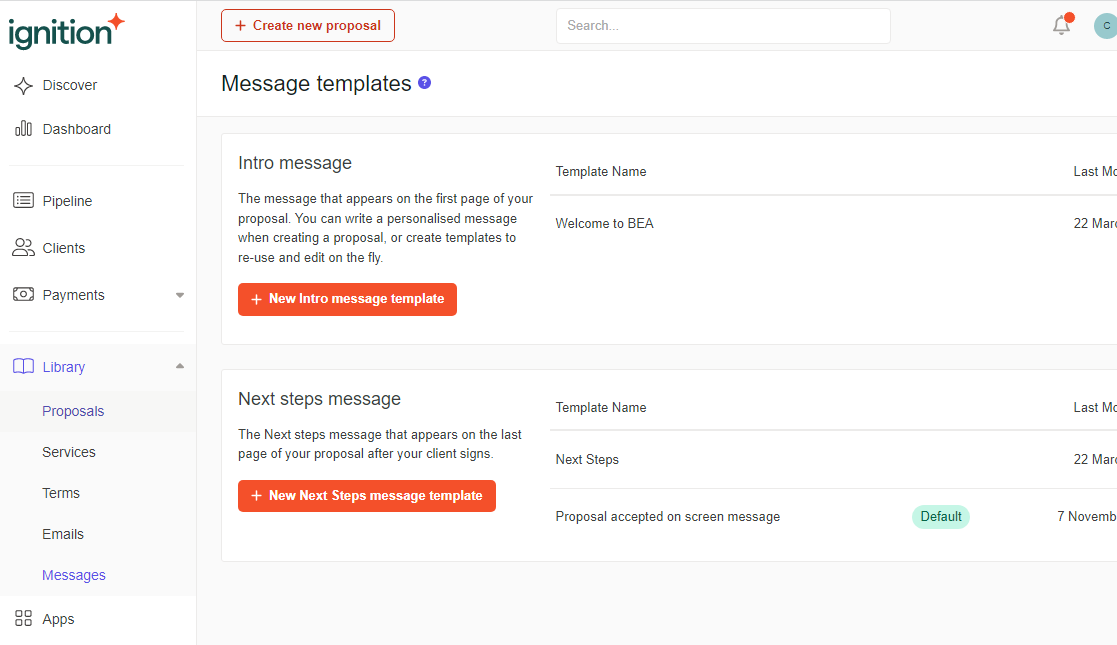
Save your changes in Ignition. From now on, every client who accepts a proposal will be directed straight to their Seamlss onboarding form.
Sample Next Steps Message Template #
Copy and adapt this inside Ignition’s Next Steps message editor:
Dear [Contact Name],
We’re thrilled to welcome you to [YOUR FIRM NAME] thank you for choosing us.
Now that you’ve accepted your proposal, the next step is to complete your onboarding form via Seamlss. This collects your details and, where required, completes our identity verification process.
[Click here to complete your onboarding form] (paste your Client Link here)
Please take a few minutes to complete this as soon as possible it’s the final step before we can get your account set up and start working together.
If you have any questions along the way, don’t hesitate to get in touch.
Best regards, [YOUR NAME]
Other Ways to Share Your Client Link #
The Ignition Next Steps message is the most common channel, but your Client Link works anywhere you can share a URL. Other options include:
- Email: Include in welcome emails or follow-up templates.
- QR Code: Generate a QR code via Canva or QRCode Monkey for printed materials or business cards.
- Website: Add a “Get Started” button on your onboarding or contact page.
- SMS: Send directly to clients for time-sensitive requests.
- Zapier: Set up an automation so that when a proposal is accepted in Ignition, Zapier sends an email to the client containing their Client Link automatically.
For a full breakdown of sharing options, see the Client Links guide.


