
A Client Link is one web address you can put anywhere: your website, an email, an SMS, a QR code in your front window or the next steps of a proposal. Clients open it and onboard or re-engage themselves, so by the time you meet them their details, ID check, forms and signed engagement letter are already in Seamlss.
In Seamlss: Clients in the left menu, then the Client Links tab.
Open Client LinksWhat can I do with these?
Put your link on a QR code, your website, emails, texts, proposals, newsletters and client portals, or send it automatically with Zapier. See each one as a mockup, with wording you can copy.
Set up a Client Link #
Add a link
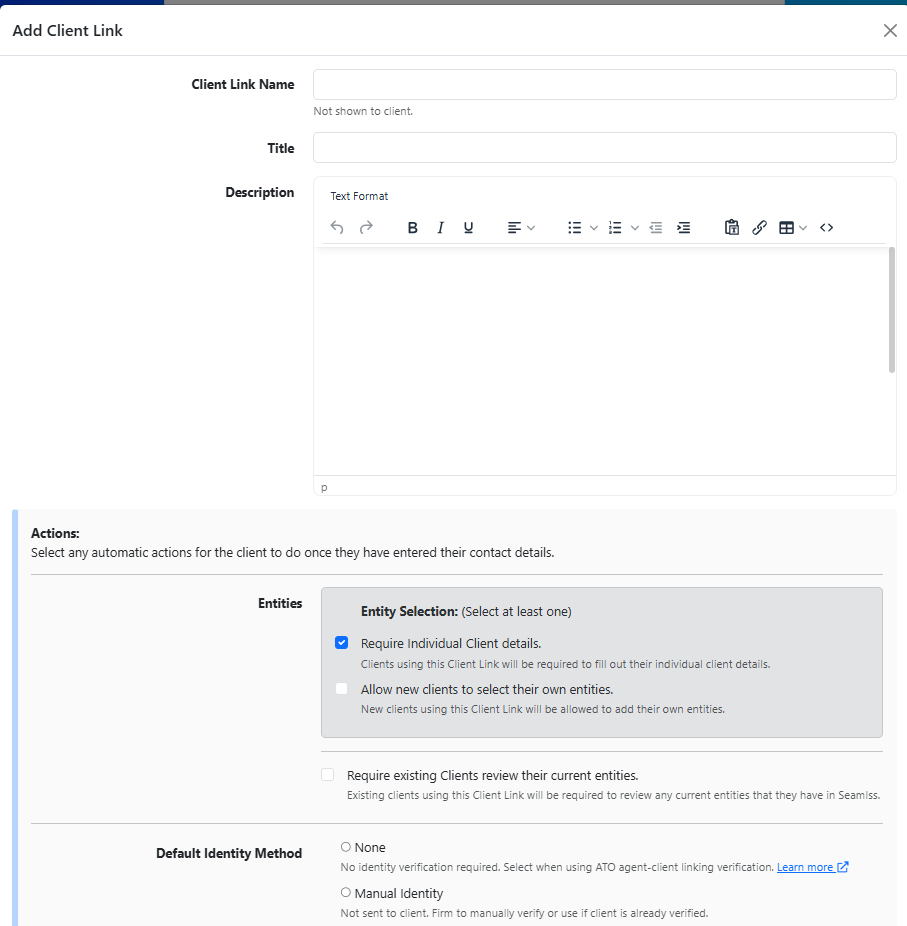
On the Client Links tab, click Add Client Link.
Name it
Client Link Name is for your team; clients don’t see it. The Title and Description are what clients see first, so write them for the client: what the link is for and what they’ll need.
Choose the entity steps
Under Entities, require the client’s individual details, let new clients add their own entities, or both. You can also ask existing clients to review the entities you hold.
Choose the ID check
Default Identity Method sets how clients using this link are ID checked: no check, a manual check by your firm, or a check the client completes. Choose an ID check method explains the options.
Add forms
Under Fetch Forms, click Add custom form to include a form. Tick the years under ITR Forms if clients should enter their tax return details.
Add the engagement letter
Choose a template under Engagement Letter, or tick Skip signing engagement letter by client if they’ve already signed one. Engagement letter templates shows how to set one up.
Choose the email
Email Template is sent to new clients who use the link. Existing clients confirm who they are with a code instead, so they don’t get an email.
Save
Click Add Client Link. The link and its web address appear in the list.
Test it as a client
Copy the web address, open it in a private browser window and go through every step the way a client would.
Client Link or Lead Link? A Client Link is for clients: onboarding, re-engaging and collecting their details. A Lead Link, under Leads, is for enquiries and can’t include an engagement letter. Use a Client Link whenever you want something signed.
Share the link #
It’s just a web address, so it works anywhere clients will see it: your website, a QR code in your office, emails, texts, proposals and newsletters. Share your Client Links has eight ways to share one, with wording you can copy.
Send it automatically. The end of the web address, after /link/, is the link code. Paste it into a Zap and Seamlss sends the client this request when they book a meeting, sign a proposal or are added to a spreadsheet. Zapier Integration shows how.
Ways to use Client Links #
Make one link for each job, and tick only what that job needs. A link that asks existing clients for an ID check they’ve already done is asking them twice.
| Use | What to tick |
|---|---|
| New clients from your website or a booking | Individual details, an ID check, tax return details and your engagement letter. Everything is in before the first meeting (see it in the webinar). |
| After a proposal is accepted | Individual details, entities and the ID check, so the new client onboards straight from the next steps page. |
| Re-engage your whole client base | One link for everyone, sent by email, a letter with a QR code or a sign in your office. Set it up so existing clients go straight to their letter (next section). |
| Collect one form, such as an FBT questionnaire | Untick everything, add only the form and tick Skip signing engagement letter by client. The client just fills in the form (see it in the webinar). |
| Year end or tax return information | Tick the years under ITR Forms and add your year end checklist form. |
| A one-off job, such as moving a client to Xero | No ID check and no letter: only the form for that job, with file uploads. |
Send existing clients straight to their engagement letter #
For re-engagement, you may want clients you already hold to sign their letter and nothing else. A link always includes at least one entity, but an existing client only fills in details if the link or your settings ask for them.
Don’t ask for a review
Edit the link and untick Require existing Clients review their current entities. Clients already in Seamlss, from your XPM sync or an import, then go straight to the letter.
Switch off what you don’t need
In Settings, General: untick TFN Required, or tick Disable and hide TFN under Bookkeepers to remove TFNs everywhere. Set bank details to not required in Form Field Options. Turn on Disable Client-added Entities so clients can’t add new ones.
Test it as a client
Open the link with the email of an existing test client and check you land on the letter.
A client who isn’t in Seamlss yet is still asked for their details first.
Change or switch off a link #
Click Edit on the link. Untick Active to stop it working without deleting it. Edit also has options the add form doesn’t: Complete page text, which clients see when they finish, and Button Link with Button Link Text for a button to send them somewhere next. Delete removes the link.
Something not working? #
The link in the client’s email has expired
The secure link in a request email lasts 10 days. The request itself doesn’t expire. Open the request on the client record and choose Resend request for information to email a fresh link with another 10 days. The client can also sign in any time at seamlss.app/client.
A client says the Client Link doesn’t open
Click Edit on the link and check Active is ticked.
I changed the link but a client still saw the old steps
The web address stays the same, so changes apply to anyone who hasn’t used it yet. If the client already opened it, their request was made with the old steps: edit it on the client record with Update request items.
Existing clients are still asked for their details
Check Require existing Clients review their current entities. is unticked on the link, and that the client is already in Seamlss with the same email.
Agent linking still shows after I turned it off
That’s a fault on our side. Contact support and tell us which link.
An existing client didn’t get an email
That’s expected. Existing clients confirm who they are with a code, and only new clients get the email.
Still stuck? Contact support and tell us what you see.


