
Seamlss sends your engagement letter for clients to sign as part of a request or a Client Link. Set the letter up once as a document template, and Seamlss fills in each client’s details when it goes out.
In Seamlss: Templates in the left menu, then the Documents tab.
Open TemplatesCreate an engagement letter template #
Open the Documents tab
Go to Templates, then Documents. The Templates list holds your letters, starting with Engagement Letter (Default).
Name the new template
Click Add new document template, type a name and click Save new template.
Reload the page
Seamlss says Template saved. Click Reload page to select (or press F5), then open the Documents tab again.
Choose it and write the letter
Pick your template from the list. Type or paste your letter into Template content. The toolbar has headings, lists, tables and links.
Save
Click Save Template.
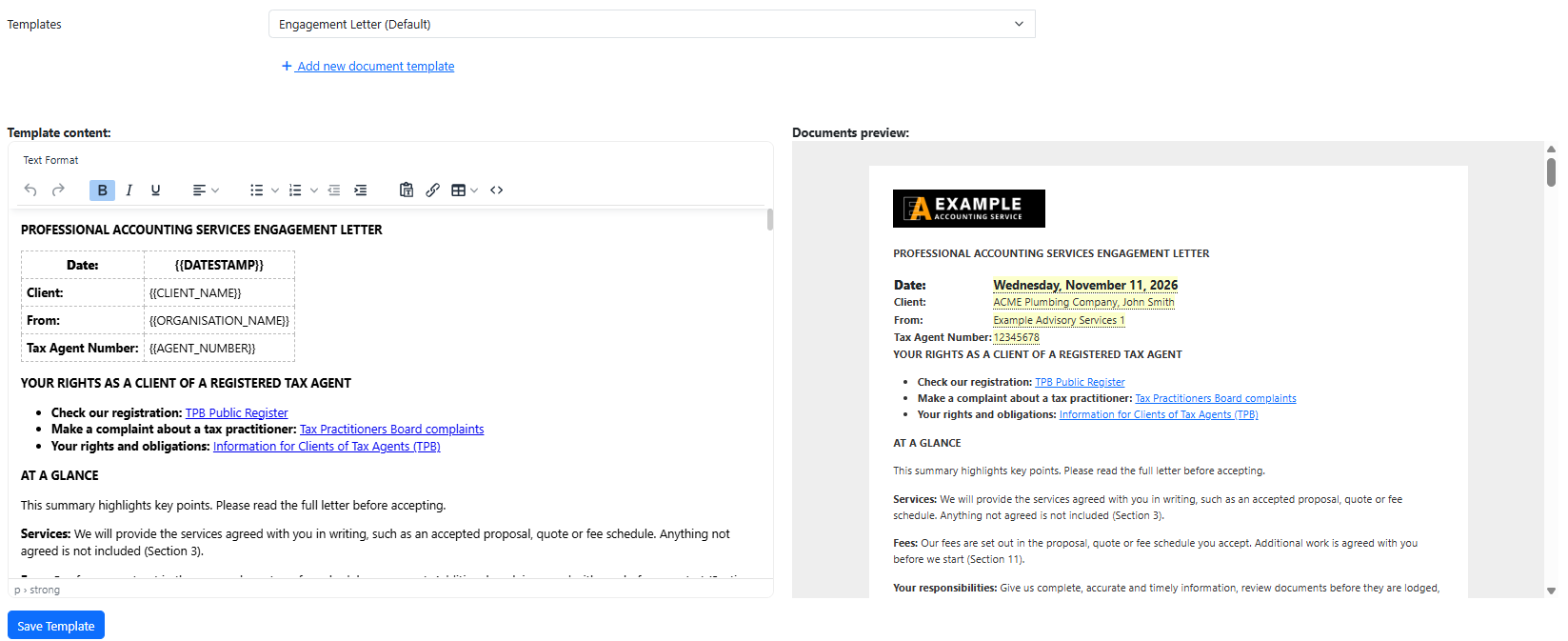
Fill in client details with tokens #
A token is a placeholder in double curly brackets. When the letter goes out, Seamlss swaps it for the real detail: {{CLIENT_NAME}} becomes the client’s name and {{DATESTAMP}} the date it’s sent. The Token Help tab lists every token.
Check the preview. It fills each token in as you type. A token that stays as plain text in the preview is misspelt, so fix it before you save.
Using AI to convert your existing letter #
Already have an engagement letter in Word or PDF? You can use an AI tool like ChatGPT, Claude or Copilot to convert it into a Seamlss template. Copy the quick conversion prompt, paste it into your AI tool, then attach or paste your letter.
When the AI gives you the result, use the copy button on the code block (don’t highlight the text by hand). In Template content, click the Source code button (<>) at the end of the toolbar, paste the result in and click Save, then Save Template. Preview it with a test client before you use it.
Before you upload anything: use a blank template, not a letter signed by a client. Remove any client names, TFNs or personal details, and check your firm’s AI policy. The TPB’s guidance on AI use (TPB(GS) 55/2026) applies to how you use these tools.
The AI will convert your letter, not check it for compliance. You’re still responsible for the content, and we recommend having your letter reviewed by a lawyer.
Send the letter #
In a client request, add a Document Sign section and choose your template (Send a client request). In a Client Link, choose it under Engagement Letter (Client Links).
One signer per letter. Each letter is signed by one person. For a couple or two directors, send each person their own request. Both requests can include the same entity.
What your letter should cover #
Seamlss includes a sample letter, but your letter should suit how your firm works. The Tax Practitioners Board explains what to include in letters of engagement, and suggests getting legal advice on the letter you use. Your professional body may have a template or guidance:
| Body | What they have |
|---|---|
| CPA Australia | Engagement letter FAQs and a sample letter (Word) |
| CA ANZ | Engagement letter tool (Australia) |
| IPA | Templates and checklists (member login) |
| NTAA | Engagement letter templates and seminar (members) |
| ABN (bookkeepers) | Bookkeeping engagement letter templates |
| ACCA | Engagement letters |
Something not working? #
My new template isn’t in the list
Reload the page after saving it, then open the Documents tab again.
A token shows as text in the preview
Check the spelling and both pairs of curly brackets against the Token Help tab.
I can’t delete Engagement Letter (Default)
The default template can’t be deleted. Edit it, or create your own and choose that one when you send.
There’s a date beside each entity on the signed letter
It’s the date that entity’s details were last updated in Seamlss, so you can see how current they are.
Still stuck? Contact support and tell us what you see.


