
A Client Link is a web address, so it works anywhere a client might see it. The more places it sits, the more clients start onboarding, re-engaging or sending their information without a phone call or an email from you. Here are eight places firms use them, with wording you can copy.
In Seamlss: Clients, the Client Links tab. Copy the web address next to the link you want to share.
Open Client LinksBefore you share it. Open the link in a private browser window and go through it as a client would. Check the title and description make sense to someone who has never heard of Seamlss, because that’s the first thing they see.
QR codes in your office and on paper #
Put a QR code where clients already are: the front window, reception, business cards, brochures, or a letter to your client list. Make one from the web address with the Canva QR code generator or QR Code Monkey. QR Code Monkey lets you add your logo.
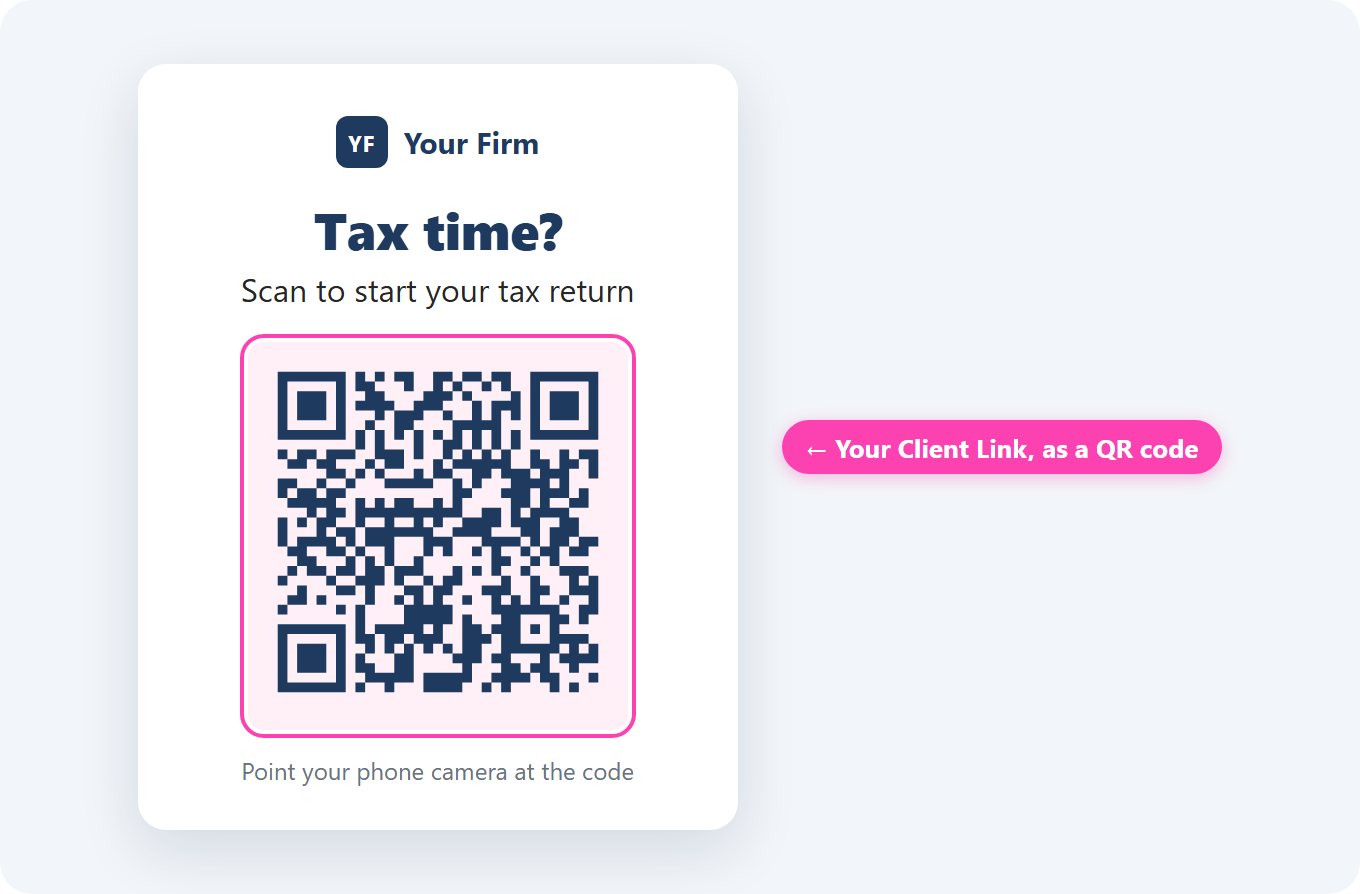
Put a reason next to it, such as “Scan to start your tax return”. Scan the printed code with your own phone before it goes out.
Your website #
Add a button to your home page, contact page or new client page, and to any FAQ that answers how to get started. Clients can then start any time, including after hours.
| Page | Button wording |
|---|---|
| Home or new client page | “Start onboarding” |
| Tax return page | “Start your tax return” |
| Contact page | “New client? Start here” |
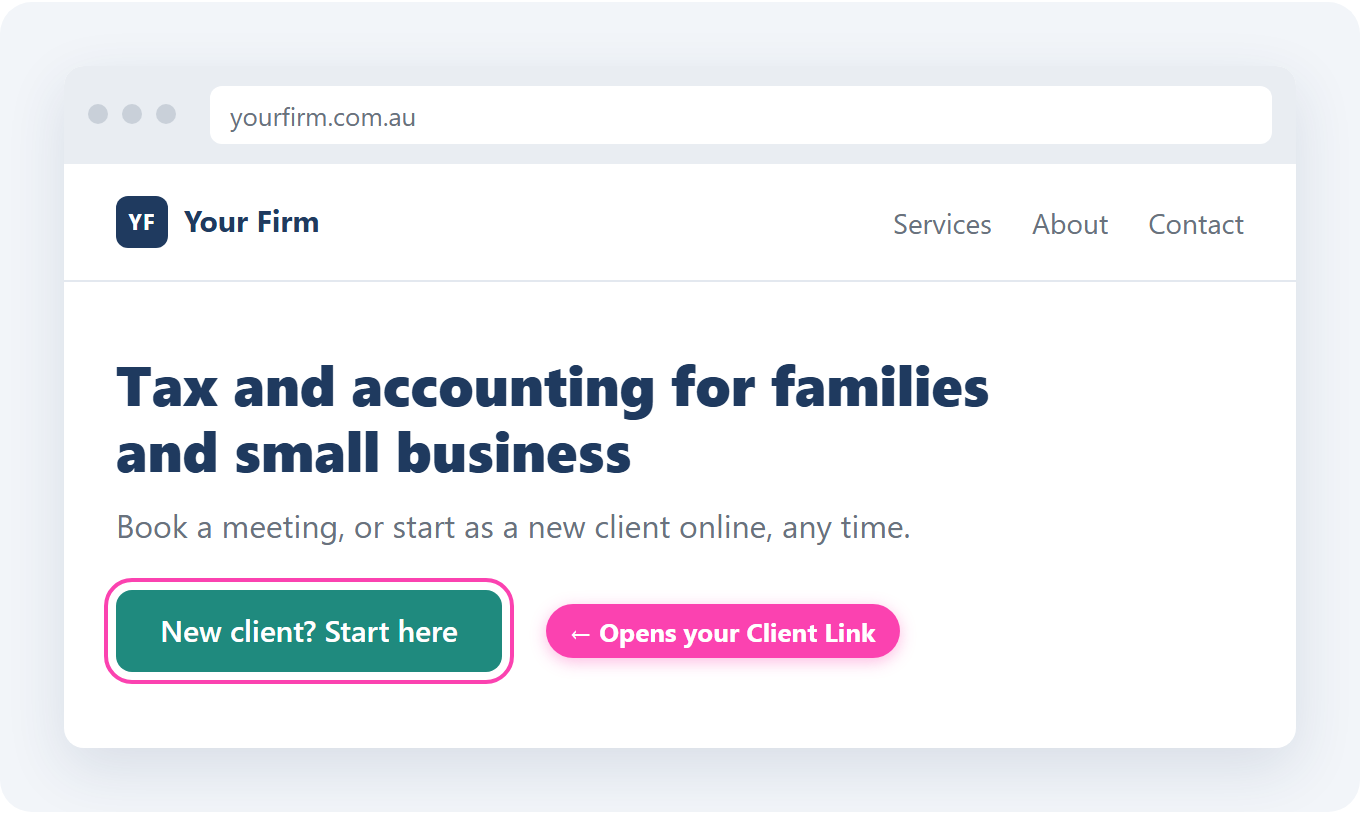
Whoever looks after your website can add a button that opens the web address. Check it on a phone too, because many clients will open it there.
Email #
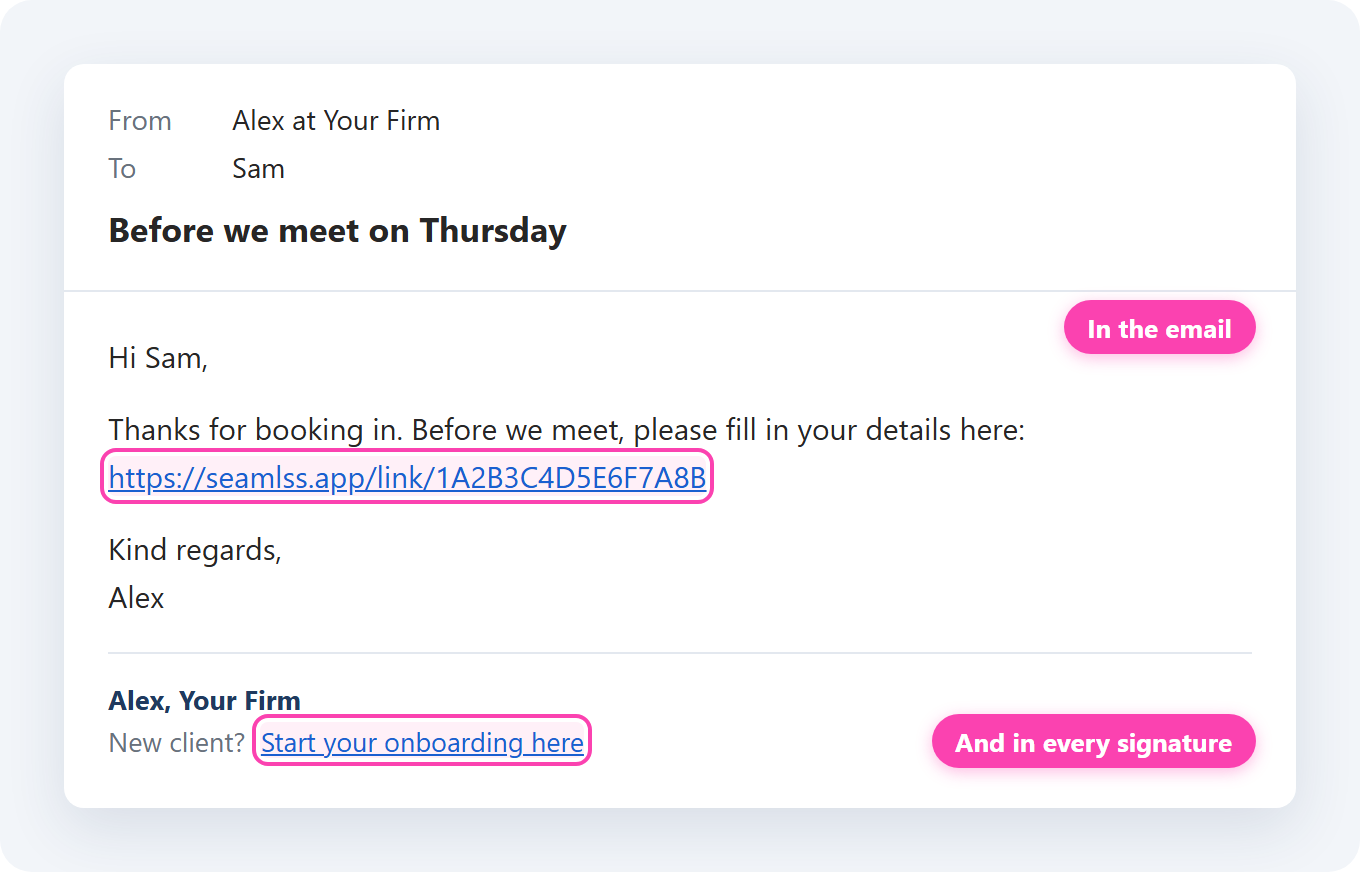
Add the link to the emails you already send: welcome emails, appointment confirmations and requests for tax information. For example: “Before we meet, please fill in your details here: [your link]”
Add it to everyone’s email signature too: “New client? Start your onboarding here: [your link]”
SMS #
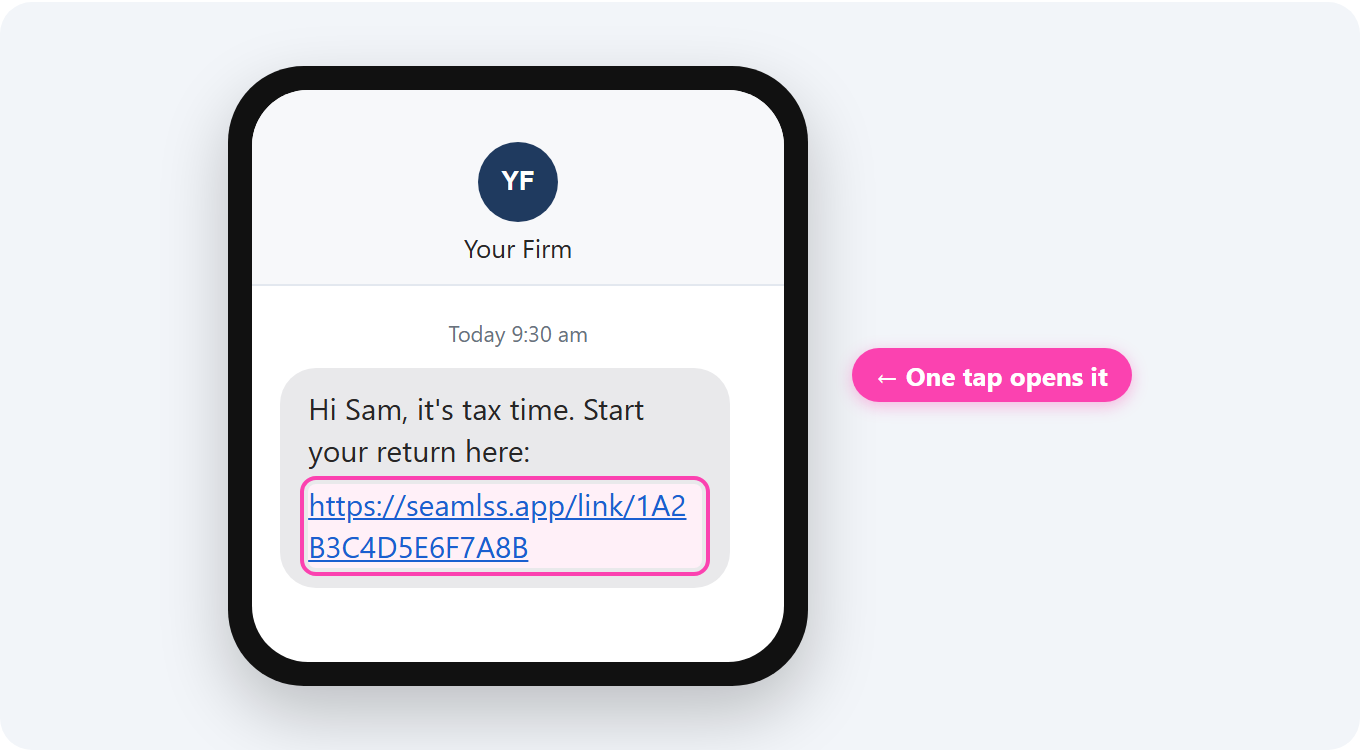
For clients who live on their phone, or anything with a deadline, paste the link into a text: “Hi Sam, it’s tax time. Start your return here: [your link]” or “Hi Sam, welcome aboard. Before our first meeting, please fill in your details here: [your link]”
Zapier #
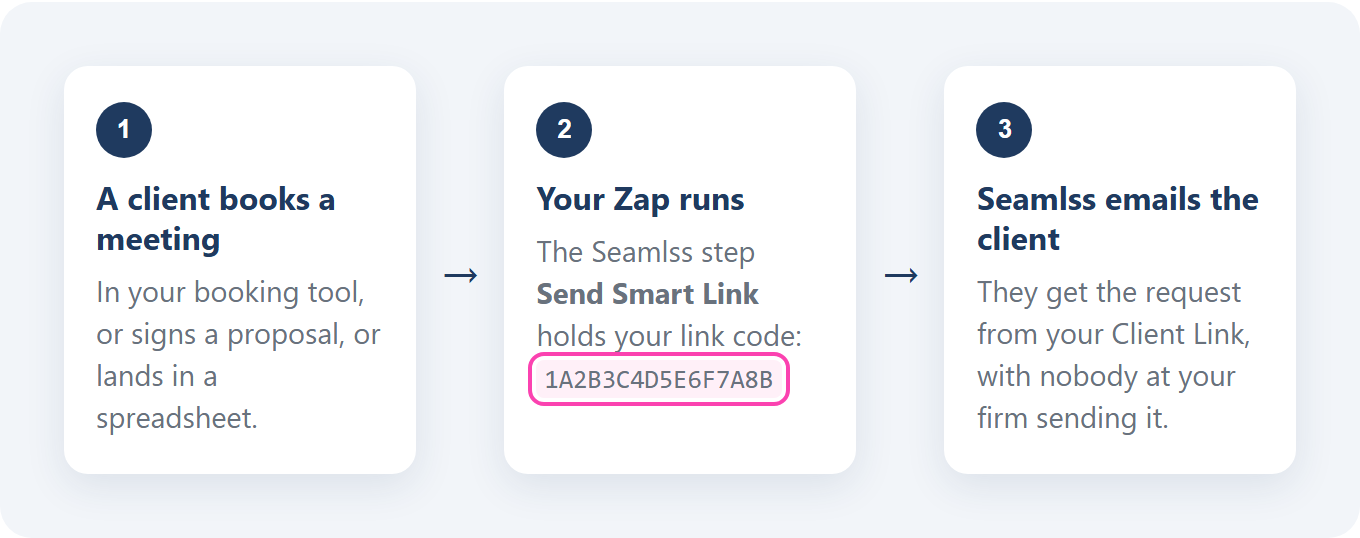
Send a Client Link automatically when something happens somewhere else: a client books a meeting, signs a proposal or is added to a spreadsheet. The end of the web address, after /link/, is the link code. Paste it into a Zap and Seamlss sends the client that request. Zapier Integration shows how.
Proposals #
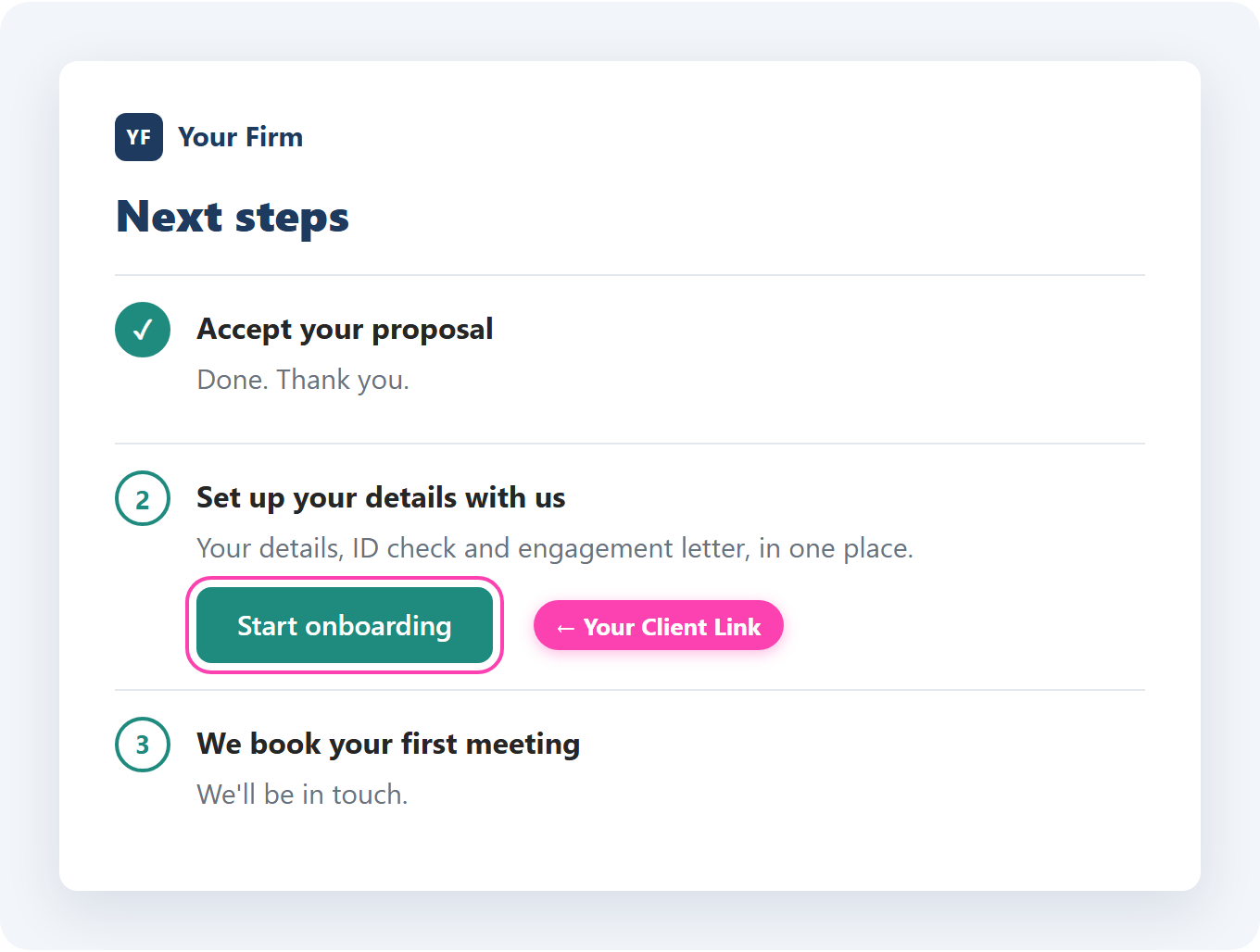
Put the link on the next steps page of your proposal, or in the email that follows an accepted proposal. The client goes straight from saying yes to onboarding, with no separate instructions. Ignition and Client Links shows how with Ignition. For example: “Next step: set up your details with us here: [your link]”
Newsletters and social posts #
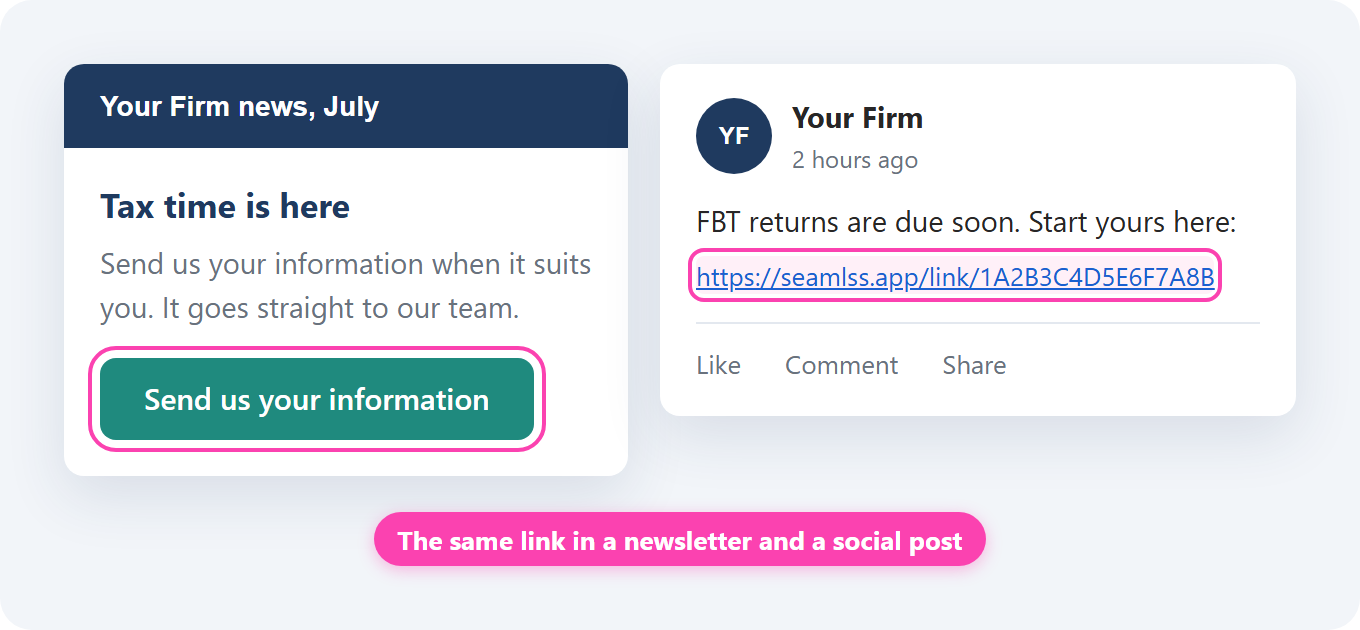
Share the link in your client newsletter or on LinkedIn and Facebook, tied to something seasonal: “Tax time is here. Send us your information here: [your link]” or “FBT returns are due soon. Start yours here: [your link]”
Client portals #
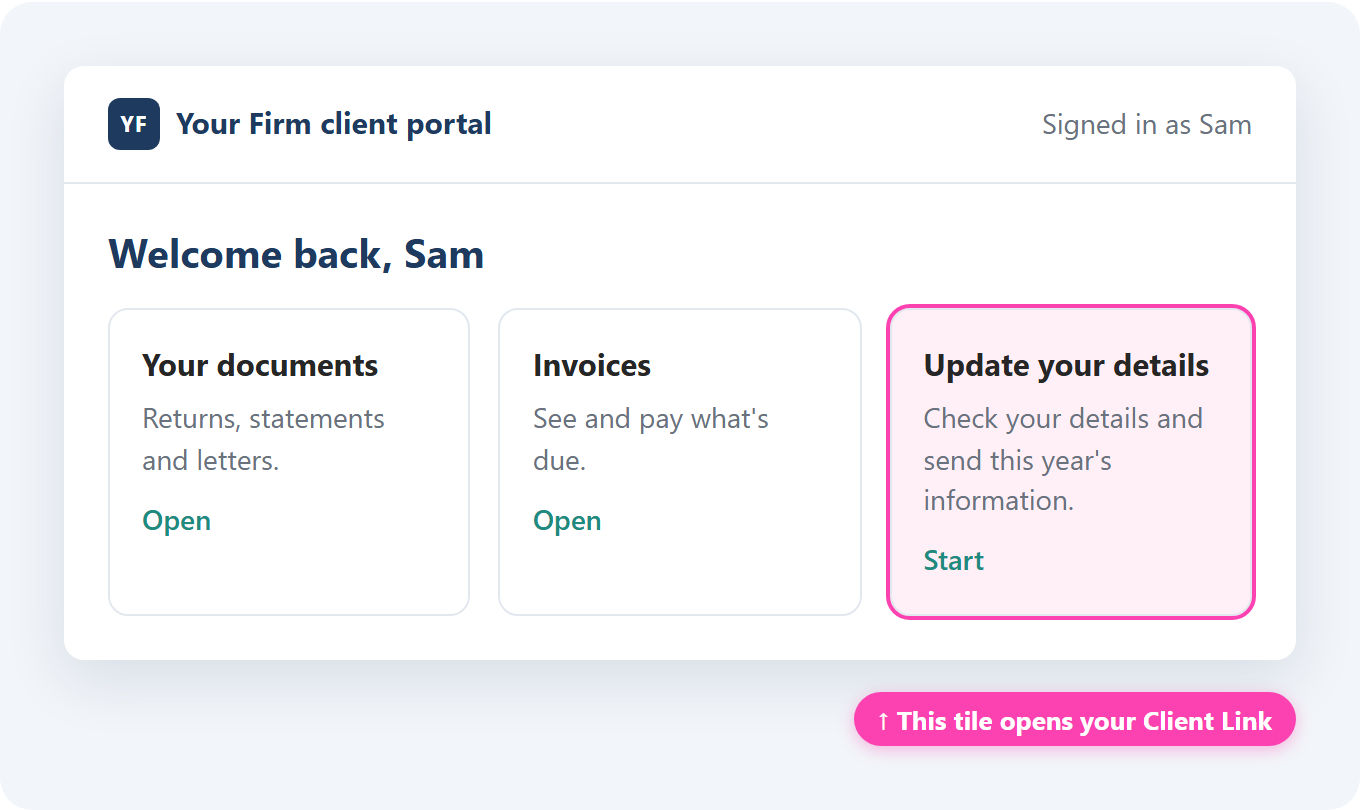
If clients log in to a portal or document system to see their files, put the link there too, so it’s where they already go. A tile such as “Update your details” works well.
Something not working? #
Clients say the link doesn’t open
Check the link is still Active on the Client Links tab, and that the whole web address was copied, including the code at the end.
Clients are asked for things they’ve already given you
Edit the link and untick what that job doesn’t need. Client Links shows what to tick for each use.
A QR code opens the wrong page
Make a new code from the web address on the Client Links tab and scan it before you print.
Still stuck? Contact support and tell us what you see.
New to Client Links? Client Links shows how to set one up and which link to use for which job.


