
Seamlss talks to Xero Practice Manager (XPM) through Xero’s connection, and that connection drops more often than it should. Most XPM problems are fixed by disconnecting and reconnecting. This guide covers that first, then what to do when XPM itself is down, and problems with syncing, matching and jobs.
In Seamlss: Settings, the Integrations tab, then Configure on the Xero Practice Manager card.
Open IntegrationsStart here: disconnect and reconnect #
Open the XPM card
Go to Settings, the Integrations tab, and click Configure on the Xero Practice Manager card.
Disconnect
Click Disconnect from XPM.
Connect again
Click Connect to XPM, sign in to Xero and allow access.
Try again
Reload the client or page you were on and do what you were doing again.
This renews the sign in between Seamlss and Xero, and it clears most connection errors. You shouldn’t need to do it every day. If you are, contact support so we can look at why.
Is XPM down? #
Sometimes the problem is on Xero’s side, and nothing you change in Seamlss will fix it. Signs: the same error on every client, the error comes straight back after you reconnect, or XPM itself is slow or won’t load.
Check Xero’s status page
Open status.xero.com and look for anything affecting Xero Practice Manager.
Don’t rely on it alone
The status page is often slow to update. Accountants in practice and Xero Facebook groups usually post about an outage well before the page changes, so check there too.
Wait, then try again
Seamlss keeps working while XPM is down. Anything that needs XPM, such as a sync, a push or a job, works again once Xero is back.
Errors and what they mean #
| What you see | What to do |
|---|---|
| There was a problem connecting to XPM. | The connection to Xero has dropped. Disconnect and reconnect (above). If it comes straight back, check whether XPM is down. |
| A sync fails part way, or says there are too many requests | XPM limits how many requests an app can make in a short time and in a day. Wait a while and run the sync again. |
| A sync of a large practice times out | Try again later. Large client lists take longer, and a busy period can tip them over. If it keeps happening, contact support. |
XPM changes don’t show in Seamlss #
Seamlss works from the copy of your XPM data it pulled at the last sync, so something you changed or deleted in XPM won’t show until you sync again.
Re-sync
In the XPM panel, click Re-sync. It pulls only the records changed in XPM since your last sync.
Check one client
When you’re matching a client, click Refresh Matches from XPM to look up that client in XPM directly.
There’s no Push to XPM button #
The Push to XPM button only appears once your firm has connected XPM. Go to Settings, the Integrations tab, and connect it (Connect XPM with Seamlss). Every client record then has a bar at the top with Last synced and Push to XPM.

Push to XPM picked the wrong client or made a duplicate #
Seamlss matches clients against what it has already pulled from XPM, so run your first full sync before you push anyone. Then, when you push:
Pick the existing client
If the client is already in XPM, choose them from the list rather than This is a new individual, company or trust.
Look them up if they’re missing
Click Refresh Matches from XPM. If XPM won’t create a new client, it usually already has one with those details: match it instead.
Already linked to the wrong XPM client? Unsync it and match it again:
Open the push panel
On the client record, click Push to XPM.
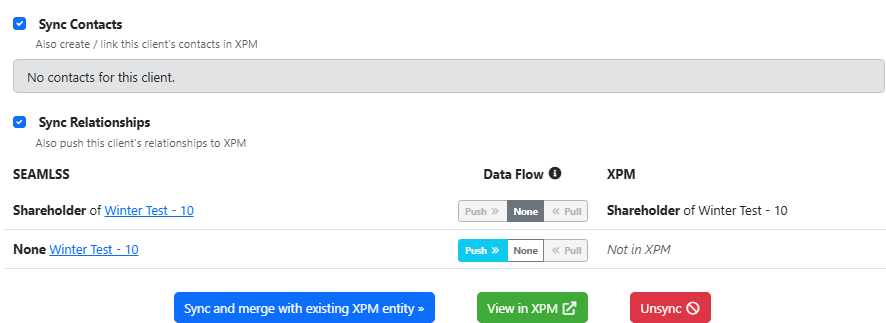
Click Unsync
Scroll to the bottom and click Unsync. This removes the link between the client in Seamlss and that XPM record. Nothing is deleted in XPM or Seamlss.
Match it again
Click Push to XPM again and choose the right XPM client, or This is a new if they aren’t in XPM yet.
Push a client to XPM covers matching step by step.
Jobs that won’t deploy #
| Problem | What to do |
|---|---|
| No job templates to choose from | Job templates come across when you connect to XPM. If none show in the XPM panel, disconnect and reconnect, then check again. |
| No Job Options in the request | They’re on the last step of the request, and only appear once you’ve ticked the client. The request also needs to include the entity the job is for. |
| A job didn’t deploy | Disconnect and reconnect, then try that client again. Each client’s job deploys on its own, so one failing doesn’t stop the others. |
Still stuck? #
Contact support and tell us the client, what you clicked and the exact message you saw. With your permission, we can add our support user to your account to look at the connection from our end.
Setting XPM up for the first time? See Connect XPM with Seamlss.


