
Seamlss reminds your clients when a request has been sent and isn’t finished, so nobody at your firm has to chase. Reminders are on for every firm, on a default schedule you can change.
In Seamlss: Settings, then the Automations tab.
Open Settings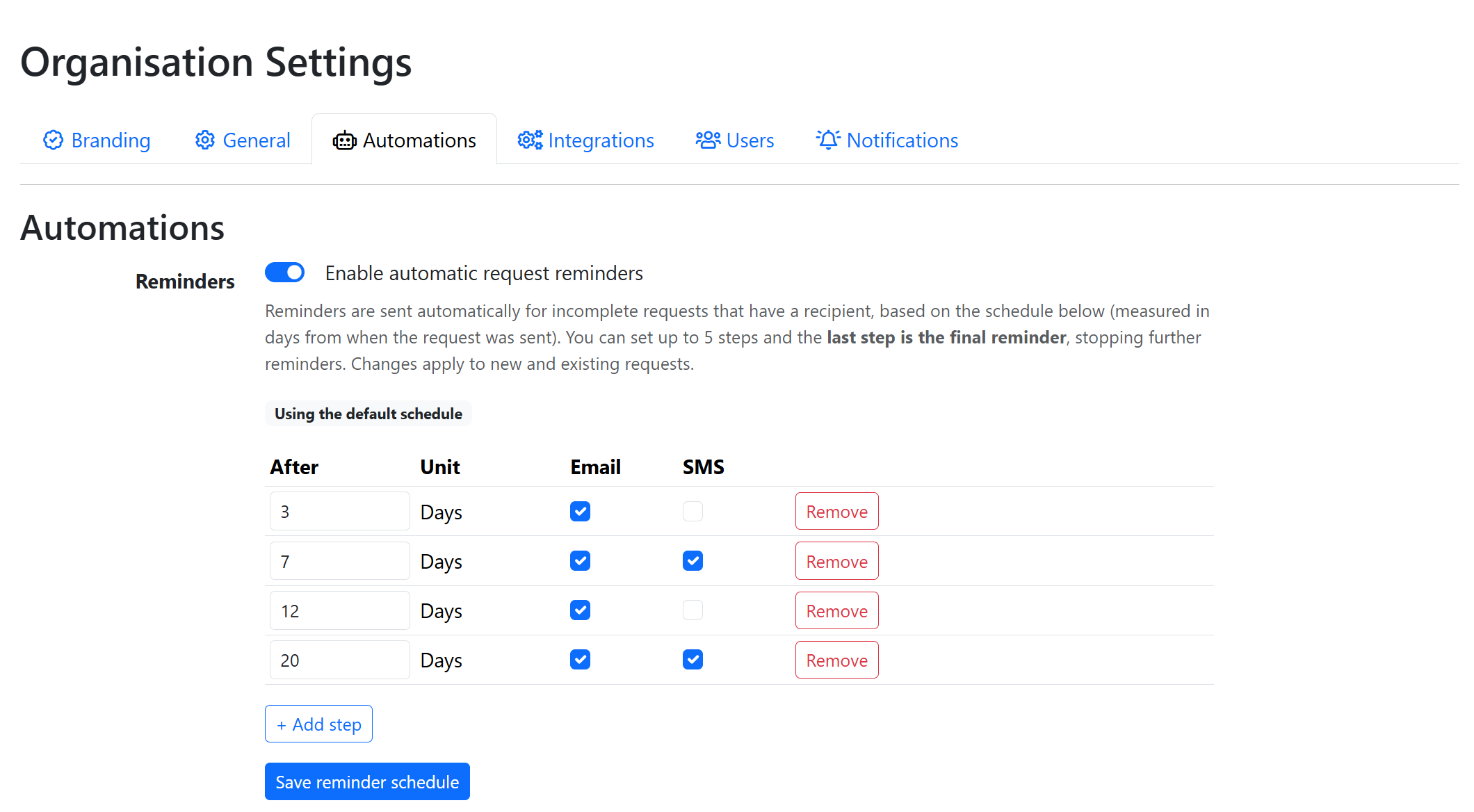
When reminders go out #
Days count from when the request was sent.
| After | Seamlss sends |
|---|---|
| Day 3 | |
| Day 7 | Email and SMS |
| Day 12 | |
| Day 20 | Email and SMS, the final reminder |
Reminders go out on any sent request that isn’t finished and has a recipient. They stop as soon as the client completes every required item or the last reminder is sent.
Each SMS uses a request item. That includes an SMS sent as a reminder. On the default schedule, a request that never gets finished uses up to two request items in SMS. To keep reminders to email only, untick SMS on every step.
Change the schedule #
Open Automations
Go to Settings, then Automations.
Set each step
Type the number of days in After, then tick Email, SMS or both.
Add or remove steps
+ Add step adds one, up to five in total. Remove takes one out. The last step is always the final reminder.
Save
Click Save reminder schedule. Changes apply to new requests and to requests you’ve already sent.
One schedule for the whole firm. The schedule applies to every request your firm sends. Schedules for a single request, and more than one schedule to choose from, are on the way.
Turn reminders off #
In Settings, then Automations, switch off Enable automatic request reminders, then click Save reminder schedule. Switch it back on the same way.
Something not working? #
A client is getting several reminders
Each request sends its own reminders, so a client with several open requests gets reminders for each one. We’re changing this so they get one reminder for all of them, and that update is coming shortly. Until then, use fewer steps or untick SMS.
A client finished, but still got a reminder
Reminders stop only when every required item is done. Open the request and check which required items are still outstanding.
No reminders are going out
Check the switch is on in Settings, then Automations. Reminders only go out on requests that have been sent and have a recipient.
My changes didn’t stick
Nothing changes until you click Save reminder schedule. Make your changes again, then save before you leave the page.
We’re using more request items than expected
SMS reminders use a request item each. Untick SMS on the steps where email is enough.
I want the default schedule back
Set four steps: day 3 email, day 7 email and SMS, day 12 email, and day 20 email and SMS. Then save.
Still stuck? Contact support and tell us what you see.


